FAQ
Explore frequently asked questions from faculty about Canvas

Technical Information
Hardware/Software Requirements
Canvas is built using web standards and runs on Windows, Mac, Linux, iOS, Android, or any other device with an up-to-date web browser. Canvas supports the latest two versions of every browser release and plugin.
★ It is strongly recommended that all users update to the newest version of their preferred internet browser.
Supported Internet Browsers
- Chrome (Best Choice)
- Firefox
- Edge
Not Recommended
- Safari
- Due to some performance and display issues, Safari is not currently recommended.
Hardware Requirements
Canvas use depends greatly on a good browser experience. Any hardware capable of supporting the latest versions of the recommend browsers above is suitable.
Additional Recommended Hardware
Professors often find that incorporating rich media interactions into their course can increase student engagement. Canvas supports web conferencing, media-rich discussion threads and media assignment submissions. The following hardware is recommended to take advantage of these engaging tools:
- Microphone
- Speakers
- Webcam
Users are responsible typically for obtaining their own hardware. Multimedia hardware is often available in classrooms where there are workstations present.
Canvas on the Go! iOS Mobile App (iPhone and iPad)
Note: Mobile browser use is not recommended.

You can use the Canvas App to grade assignments with text, audio/video, and rubric feedback for your students, create and manage course discussions, view quiz submissions, create course announcements, and send personal messages to students.
Canvas on the Go! Android Mobile App (Phone and Tablet)
Note: Accessing Canvas via mobile browsers is not recommended.
You can use the Canvas App to grade assignments with text, audio/video, and rubric feedback for your students, create and manage course discussions, view quiz submissions, create course announcements, and send personal messages to students.
Is there a file storage limit in Canvas?
Typically, each course in Canvas has a file storage quota of 2GB. If you reach this limit, you may get a message stating, “Error: File Size Exceeds Quota.” Occasionally, the error does not appear but you will be unable to upload files.
Consider the following most common issues and tips to help you manage and reduce your storage usage if necessary.
- Video
- Video files should be uploaded to Canvas Studio and embedded into your course, rather than uploading the video files directly into your course. Videos stored in Canvas Studio do not count towards your course's file storage quota.
- PowerPoint Presentations with Audio
- Although PowerPoint allows you to record audio using the “Record Slide Show” function, we do not recommend this method to create narrated presentations.
- Instead, we recommend recording a screen capture video of your PowerPoint presentation using Canvas Studio.
Course Availability and Enrollments
When will my course shell be available in Canvas?
Official course shells with student enrollments are automatically created twelve weeks in advance of the beginning of each term.
If you would like to begin preparing a course in Canvas before the official course shell with student enrollments is available, you can request a Prep Space site that doesn't have student enrollments. All Prep Space course content, activities and settings can be quickly copied into the official course shell where your students are enrolled.
Can I add and remove students from my course?
No. Student enrollments are processed automatically based on information from the Registrar's office. Multiple updates each day will keep enrollments up to date based on student adds and drops from the Registrar's office. Should you encounter a delay of more than 24 hours please contact the ITS Service Desk at ServiceDesk@seattleu.edu.
When can students access my course before and after each term?
Students can access a course once it has been published.
Once a term ends, courses go into "read only" mode for students . To enable incomplete students to submit work after the term has concluded, instructors will need need to override the term dates by going into course settings to extend student access to the course.
Can I add and remove additional people other than students to my course?
Faculty who are assigned to a course and listed in the Registrar’s databases may manually add fellow faculty, teaching assistants, course designers and librarians to their current course using the People tab.
Note: Canvas use is restricted to Seattle University Faculty, Staff and Students. Faculty are responsible for ensuring that all individuals who are added in roles other than “Student” have completed FERPA training. Faculty may not manually add or remove individuals as “Student” into their course, please see the Can I add and remove students from my course? FAQ for more information.
The following links will give you step-by-step instructions from Canvas documentation:
- How do I add users to a course?
- How do I remove manually added faculty, teaching assistants, designers, and librarians from my course?
Can I add colleagues as instructor to a previous course?
Since courses go into a "read only"mode at the end of the term, instructors will need to temporarily change the course dates with an end date in the future to reactivate the + People button.
Is a student photo roster available in Canvas?
A student photo roster is available through the Faculty Module in MySeattleU https://my.ec.seattleu.edu/
Course Configurations and Customizations
May I merge multiple sections of a course to use the same course shell?
Yes - but per FERPA, instructors must make several changes to their Canvas course to ensure that students in different sections are not able to see or interact with each other within the combined course. Note: Officially cross-listed courses are exempt from the need to change section visibility settings.
Steps:
- Request a section merge by contacting the Canvas Administrator, John Buell, directly or via ServiceDesk@seattleu.edu.
-
Under Settings > Course Details > more options:
- Check Disable comments on announcements
- Uncheck Let students create discussion topics
- Uncheck Let students organize their own groups. When creating groups, require group members to be in the same section.
Discussions Settings:
- For graded discussions, create Differentiated Discussion topics restricted to individual sections.
- For ungraded discussions, use the “Post to” option to post topics to individual sections instead of the entire class.
- When creating groups for group discussions, create separate groups for each section.
- The Discussions Redesign feature can be used to create discussions allowing for full student anonymity or allowing students to opt-in to anonymity.
- If you intentionally wish to create collaboration opportunities between students in multiple sections, you must request an exemption from the FERPA policy by contacting the Office of the Registrar. Update your course shell to prevent cross-section visibility:
Note: Sections must be merged before the quarter begins. Student submission data will be lost if merging occurs after students have interacted inside your Canvas course site.
How do I integrate external applications into Canvas?
Application integrations are the process of bringing data or functionality from an external application into Canvas.
Because Canvas contains FERPA-protected data and integrations can significantly modify how Canvas works, IT Services must evaluate and approve integrations.
How to I integrate online library resources into my course?
Many resources from Seattle University's Lemieux Library and McGoldrick Learning Commons can be incorporated into Canvas, including direct links to full text articles and ebooks, library research (subject) guides and a library course guide customized for your class.
My Canvas course title is incorrect, how do I fix it?
Canvas course titles are based on official records from The Office of the Registrar.
Please review your course information on mySeattleU to verify that your course title has been input incorrectly through the Registrar. If so, contact your department's administrative assistant to correct this error. Once the change is made, Canvas will automatically update with the correct title within the next business day.
Canvas Accounts and Non-Course Groups
I am new and have not received my SU credentials yet. Can I access Canvas?
Access to Seattle University Systems, including Canvas, is dependent on the Faculty Services/Human Resources on-boarding processes. Due to a number of legal and policy reasons, access to Canvas is not provided until new faculty have completed the on-boarding process. At the request of sponsoring departments, Faculty Services has options for providing new faculty access to SU systems (Canvas, SU email, etc.) up to six weeks in advance of the contracted term. Please contact Faculty Services to discuss options.
How do I request a Canvas Non-Course Group?
Non-Course Groups are Canvas sites accessible only by SU students, faculty and staff, that support activities related to for-credit academic programs that do not fit within a standard Canvas course site. Examples include program-specific student information sites, internship sites, or other sites that facilitate cross-course/cross-term student project work.
Like Canvas courses, Non-Course Groups provide participants the ability to submit materials, have discussions, review wiki pages and take quizzes. Non-Course Groups are administered by one or more Group Administrators who build content and manually manage enrollments for the site.
Canvas Non-Course Groups are not intended to replace more appropriate campus technologies.
Faculty and staff working groups should use Microsoft 365 tools including Teams, SharePoint and Forms, or Qualtrics for surveys. EngageSU should be used for training and workforce development activities and ConnectSU for student club activities.
Groups that are faculty, staff or student-facing but not tied to for-credit academic programs may be hosted in SU Communities, an alternative Canvas instance, in order to prevent Non-Course Groups from interfering with for-credit courses. Publicly facing continuing education and outreach courses are be hosted on Seattle University's Professional and Continuing Education platform, Catalog.
Request a Canvas Non-Course Group
Non-Course Group sites require manual setup and management by one or more Group Administrators. To request a new site, contact servicedesk@seattleu.edu. Once created, the Non-Course Group Administrators are responsible for adding and removing participants.
Course Evaluations
Watermark Course Evaluations
Watermark Course Evaluations are Seattle University's course evaluation system. Watermark Course Evaluations are integrated into Canvas, allowing students to provide feedback about courses and instructors via a convenient link located inside their course. Instructors and evaluation report administrators also access Watermark Course Evaluations from within Canvas.
Help Guides
You can find how-to guides by entering a Canvas course and clicking the Instructor Course Evaluations link in the course navigation. You will find the Help button on the upper-right corner of the screen.
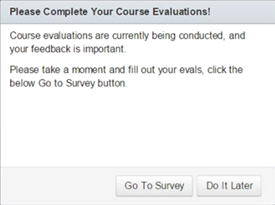
★ Tip: Students will be reminded of incomplete course evaluations by a pop-up window upon logging into Canvas, here is what the pop-up will look like:
Technical Support
Support for Watermark Course Evaluations is provided by the Evaluation Administrators for each school or college. If you are having questions or are experiencing a problem with Watermark Course Evaluations, please contact the appropriate administrator below:
Albers School of Business & Economics
Liz Wick
(206) 296-5698
wickl@seattleu.edu
Arts & Sciences
Renee Yiu
wyiu@seattleu.edu
College of Education
Beth Armitage
(206) 296-6170
armitagb@seattleu.edu
College of Nursing
Maiya Mosteller
(206) 296-6985
mmosteller@seattleu.edu
Cornish College of the Arts
Margaret Kirchner
mkirchner@seattleu.edu
Science & Engineering
Michael Lutterman
(206) 296-2452
mlutterman@seattleu.edu
School of Law
Deann Ketchum
(206) 398-4302
ketchumd@seattleu.edu