Canvas Student Guide for Seattle University
Learn how to access and use Canvas as a Seattle University student, including tips for submitting assignments and checking grades.
 Student Canvas Quicklinks
24/7 Canvas Support
Get answers fast from Instructure's Canvas Student support team.
Student 24/7 Canvas Support Hotline:
1-844-668-0893
Email:
support@instructure.com
Chat:
Click the Help button at the bottom of the global navigation menu in Canvas.
Getting Started
Getting Around Canvas
Dashboard
After you login to Canvas, you will land in the customizable Canvas dashboard.
The Dashboard defaults to the "Card View" but you are able to change to the view if you wish.
On the far left, you will find the Global Navigation bar in black. On the right sidebar, you will find a To Do section, a Coming Up section, and a Recent Feedback section.
- How do I use the Dashboard as a student?
- How do I use the To Do list and sidebar in the Dashboard as a student?
- How do I use the Global Navigation menu as a student?
Course
You will be taken into a Canvas course when you click on a Canvas course card from your personal Dashboard.
The Canvas course interface consists of three main elements: 1) the collapsible Course Navigation menu on the left, 2) the Content Area in the main body of the page, and 3) the Sidebar on the right hand side of the page (or, if you are using a smaller screen, the side bar may appear at the bottom of the page instead).
The course navigation menu and content area may look slightly different in different courses, as they are customizable by your instructor. The sidebar has the same functions as on the Dashboard but only shows To Do and Coming Up items for the specific course.
Hardware/Software Requirements
Canvas is built using web standards and runs on any device with an up-to-date web browser. Canvas supports the latest two versions of every browser release.
Supported Internet Browsers
- Chrome (Best Choice)
- Firefox
- Edge
Not Recommended
- Safari
- Due to some performance and display issues, Safari is not currently recommended.
Hardware Requirements
Canvas use depends greatly on a good browser experience. Any hardware capable of supporting the latest versions of the recommend browsers above is suitable.
Additional Recommended Hardware
Professors often find that incorporating rich media interactions into their course can increase student engagement. Canvas supports web conferencing, media-rich discussion threads and media assignment submissions. The following hardware is recommended to take advantage of these engaging tools:
- Microphone
- Speakers
- Webcam
Students are responsible for obtaining their own hardware if needed. Multimedia hardware is often available in classrooms where there are workstations present.
Update your Canvas Account Preferences (e.g. Name, Photo, Notifications, etc.)
Personal Profile Settings
By default, Canvas will use your name as recorded in the Student Information System and your Campus ID image as your default Canvas Profile Image. Canvas allows you to update your Display Name and Profile Image.
Students may find Canvas Display Name updates sufficient for minor changes; however, Canvas use of Display Names is inconsistent and in many places the legal name will still be visible such as course roster used by your instructor.
Instead, students may choose Preferred Names that differ from their legal names by contacting the Registrar’s Office to request use of a Preferred Name. The Preferred Name will then replace the name visible in all areas of Canvas.
Students may also add biographical information including links to personal websites to their profile.
★ Note: Canvas display names, bio information and profile pictures should reflect student personal accountability and responsibility as described in the SU Code of Student Conduct.
Recommended Help Guides
- How do I edit my Profile? (edit display name, biographical information and link to professional / personal websites)
- How do I add a Profile picture?
- How do I update my SU Preferred Name?
Notification Preferences
Control how, when and where Canvas communicates with you. By default, Canvas sends emails to professor and student SU email addresses (user@seattleu.edu) with important updates, announcements and messages.
Recommended Help Guides
Add Pronouns to your Canvas Account
You are able to edit your Canvas profile to include your pronouns so that your pronouns display alongside your name in multiple areas within Canvas.
Use Immersive Reader in Canvas
When viewing pages and assignments in Canvas, you will now find a button at the top right-hand corner of the page to access Microsoft’s Immersive Reader, a useful accessibility feature that allows you to listen to your page content read aloud, adjust how the text appears, and more. Check out the Immersive Reader Guide for more details.
Completing Assignments
Turn in an Assignment
There are various options for turning in your work to Canvas assignments including file uploads, text entry, website URLs, and even media recordings from your webcam.
Recommended Help Guides
Reply to Discussions
Discussions allow students to communicate asynchronously (not in real time) with the class. The video and guides below will give you a general understanding of how they work.
Recommended Help Guides
Upload Videos & Webcam Recordings
Recommended Help Guides
- How do I submit Canvas Studio media as a Text Entry assignment in Canvas as a student?
- How do I record a Canvas Studio video with a webcam in Canvas?
Technical Support
Please contact the Canvas Support Team to report technical issues using videos in Canvas:
- Call: (844) 668-0893
- Email: support@instructure.com
Take a Quiz
Canvas Quizzes can be used by professors to check your understanding of course material. The quiz tool can also be used as an ungraded survey, including the option for anonymous responses. Quiz question can be multiple choice, true/false, and essay responses, among others. Your professor may program automated feedback for you to review upon submitting the quiz or survey.
Recommended Help Guides
Submit a Peer Review
Professors may create student peer review assignments, so you can leave feedback on your classmates' work.
Recommended Help Guides
Checking Grades
Check your grades and feedback
Canvas makes it easy to check your grades and feedback posted by professors. By default, notifications of new grades and feedback from professors are sent to student SU email accounts with a quick-link to log into Canvas for viewing.
Recommended Help Guides
Send a Personal Message Using the Inbox
Both students and professors use the Canvas Conversations Inbox tool to send messages to one or more recipients. You (and anyone you send a message to) will receive Canvas personal messages in your SU email account by default.
Recommended Help Guides
Group Workspaces
Canvas Groups provide a collaborative workspace for you and your fellow classmates where you can share files, work together on papers, hold video conferences, send announcements, and start discussions. Your professor may create a group assignment, where one group member submits your work on behalf of the group.
★ Note: Your professor has access to all group workspaces in a course.
Canvas Mobile Apps
Canvas iOS App (iPhone & iPad)
★ Note: Canvas is accessible through Chrome and Firefox mobile web browsers. However, mobile browsers are not supported, and features may not function as expected compared to viewing Canvas in a fully supported desktop browser.
The free Canvas mobile app lets you keep track of assignments in your courses, submit your work, check grades and feedback, and communicate with professors and classmates - all on the go!
Canvas Android App (Phone & Tablet)
★ Note: Canvas is accessible through Chrome and Firefox mobile web browsers. However, mobile browsers are not supported, and features may not function as expected compared to viewing Canvas in a fully supported desktop browser.
The free Canvas mobile app lets you keep track of assignments in your courses, submit your work, check grades and feedback, and communicate with professors and classmates - all on the go!
Course Evaluations
Watermark Course Evaluations
Watermark Course Evaluations is the system used to collect course evaluations from students. You will see course evaluation reminders from Watermark Course Evaluations after logging into Canvas.
Help Guides
You can find how-to guides by entering a Canvas course and clicking the Student Course Evaluations link in the course navigation. You will find the Help button on the upper-right corner of the screen.
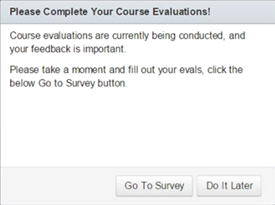
★ Tip: you will be reminded of incomplete course evaluations by a pop-up window upon logging into Canvas, here is what the pop-up will look like:
Technical Support
Support for Watermark Course Evaluations is provided by the Evaluation Administrators for each school or college. If you are having questions or are experiencing a problem with Watermark Course Evaluations, please contact the appropriate administrator below:
Albers School of Business & Economics
Liz Wick
(206) 296-5698
wickl@seattleu.edu
Arts & Sciences
Renee Yiu
wyiu@seattleu.edu
College of Education
Beth Armitage
(206) 296-6170
armitagb@seattleu.edu
College of Nursing
Jayme Markham
Graduate Evaluations
(206) 296-6986
jmarkham@seattleu.edu
Maiya Mosteller
Undergraduate Evaluations
(206) 296-6985
mmosteller@seattleu.edu
Science & Engineering
Michael Lutterman
(206) 296-2452
mlutterman@seattleu.edu
School of Law
Deann Ketchum
(206) 398-4302
ketchumd@seattleu.edu